
Make a Payment and Set Up a Payment Plan
Overview:
This page provides instructions for making a payment or enrolling in a payment plan.
Make a Payment
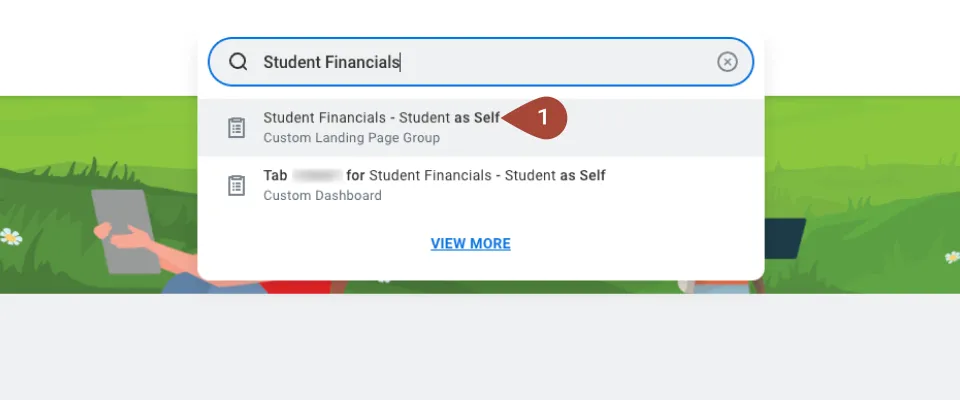
- Navigate to the search bar, type Student Financials and select it from the dropdown menu.
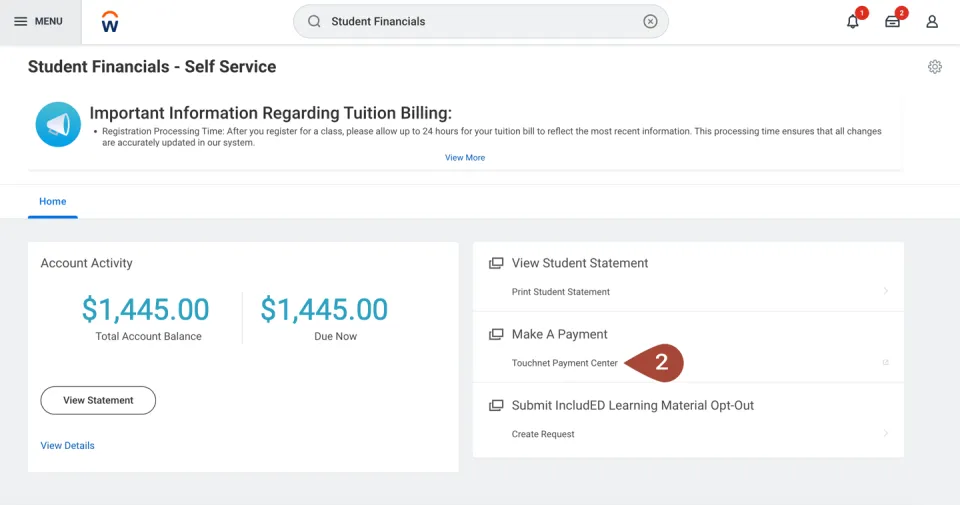
- Under Make a Payment, select Touchnet Payment Center to open a new tab.
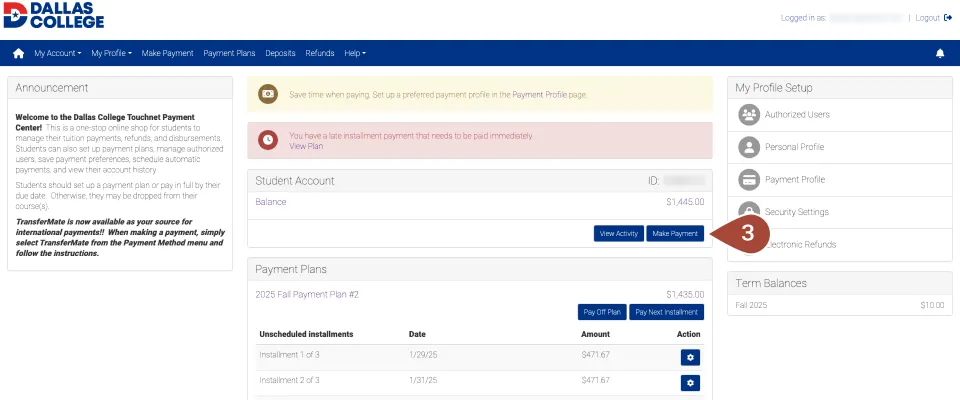
- To make a full payment, select Make Payment and enter your payment details.
Enroll in a Payment Plan
Follow steps 1 and 2 for Make a Payment.
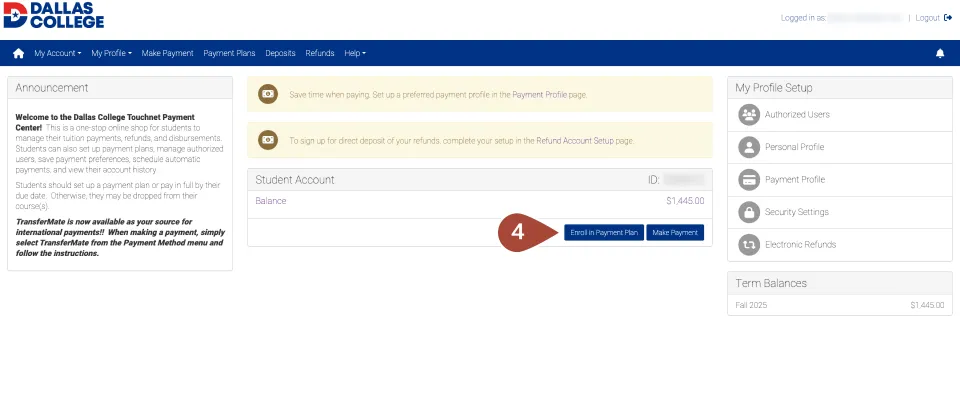
- After entering the Touchnet Payment Center, select Enroll in Payment Plan.
- Select a term for the payment plan using the dropdown menu.
- Select the Details button to view the offered payment plan.
Note that payment plans have a setup fee and down payment amount due up front.
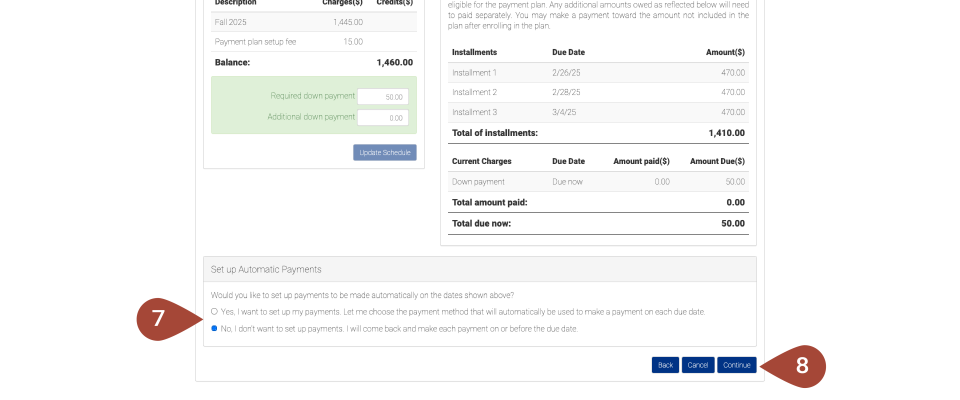
Late payments on later installments will incur a fee. Review the due dates for future payments and confirm the initial down payment amount.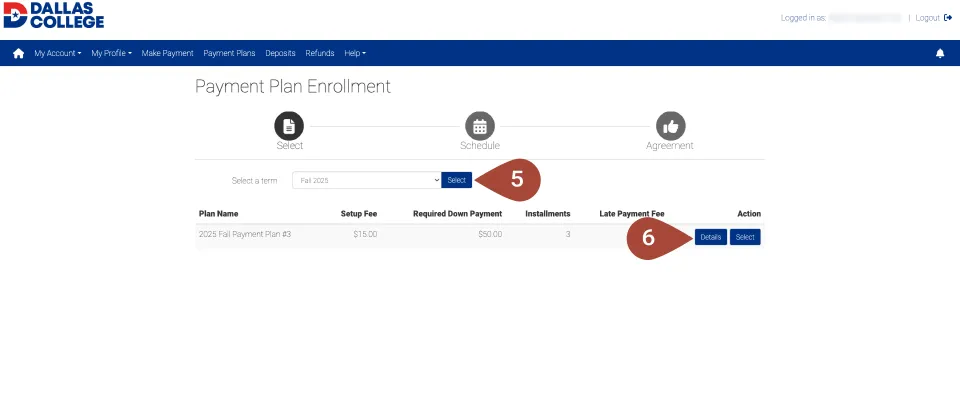
- Select one of the following options under Set Up Automatic Payments:
- Yes. I want to set up my payments. Let me choose the payment method that will automatically be used to make a payment on each due date.
- No. I don't want to set up payments. I will come back and make each payment on or before the due date.
- Select Continue to proceed.
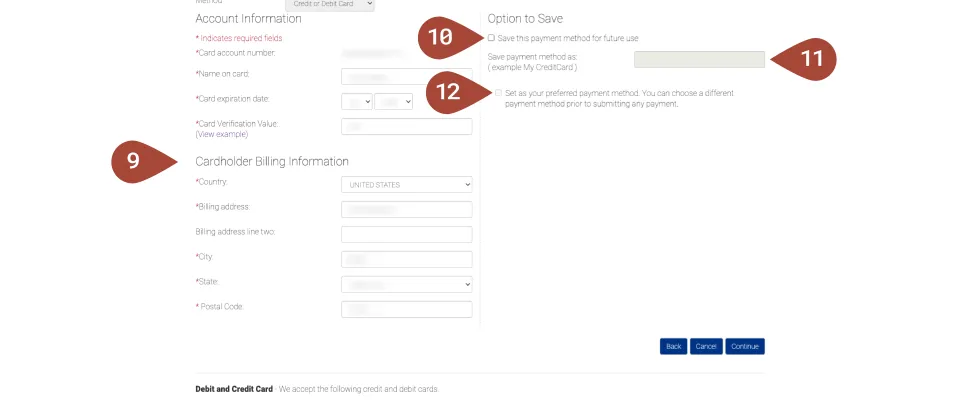
- Fill in the following fields:
- Card account number
- Name on card
- Card expiration date
- Card verification value
- Country
- Billing address
- City
- State
- Postal code
- To use this information later, check the "Save this payment method for future use" box.
- Name the payment method next to "Save payment method as." For example: “My Credit Card."
- To set this payment method as preferred, select the box next to "Set as your preferred payment method." Select the Continue button to proceed.
- Review the payment plan agreement, scroll to the bottom and select the box next to "I Agree to the Payment Plan."
- Select the Continue button to finalize enrollment.
For basic questions, contact the Hypercare Service Desk 972-860-5455 or send an email to WorkdayStudentHelp@dallascollege.edu or submit a Service Now Ticket via the Service Portal and choose “Workday Student” from the category dropdown menu.