
Virtual Desktop Sign In Help
- What is my Dallas College Username?
- What is my Dallas College Password?
- Log In Through Dallas College Online Services Screen
- Be Sure to Log Out
Are you encountering sign in issues? Let us help you.
1. What is my Dallas College Username?
/prod01/dc1-cdn-pxl/media/dallas-college/content-assets/images/resources/online-services-and-tools/for-students.png)
For Students
e1234567@hs.dallascollege.edu
Your username is the letter "e" followed by your seven-digit Student ID number (for example, e1234567).
You may notice that your Student ID is part of your student email address (e.g., e1234567@student.dcccd.edu for credit students or e1234567@hs.dallascollege.edu for dual credit students).
/prod01/dc1-cdn-pxl/media/dallas-college/content-assets/images/resources/online-services-and-tools/for-employees.png)
For Employees
8765432@dcccd.edu
Your username is three letters and then four numbers (for example, abc1234).
You may notice that your Employee ID (e.g., abc1234@dcccd.edu) is commonly called your "3x4" and is the username you use to access services like Outlook and eConnect.
Unsure about your username? Find Your Dallas College Sign-In ID.
2. What is my Dallas College Password?
Thanks to Single-Sign On you can log in using your current eConnect password.
Did you forget or need to reset your password?
Have you enrolled in the Self-Service Password Reset (SSPR) tool?
I don't know. What is SSPR?
A new password policy went into effect in August 2018 for students and employees. The policy included registering through Microsoft's Self-Service Password Reset tool to create a new, more complex password that does not expire.
3. Log In Through Dallas College Online Services Screen
When you know your Dallas College Username and Password, you are ready to log in!
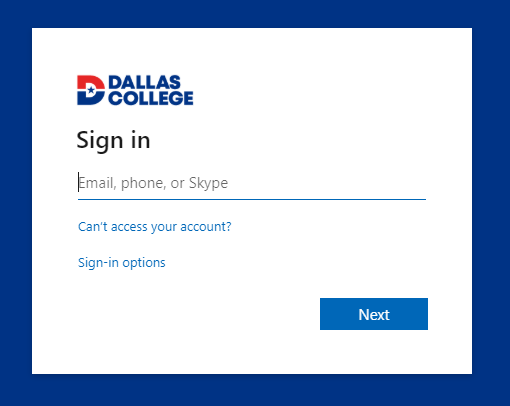
Though eCampus is powered by Blackboard, you will be using the Dallas College Online Services Screen to log in. It looks like this:
Are you encountering sign in issues? Let us help you.
4. Be Sure to Log Out
Don’t forget to Sign Out!
Please remember to sign out when you are finished using the virtual desktop. Signing out protects your personal information and prevents unauthorized access to your account.
It’s easy to Sign out!
- Click on the Start menu located at the bottom left corner of the virtual desktop.
- Click on your profile picture.
- Click Sign Out.
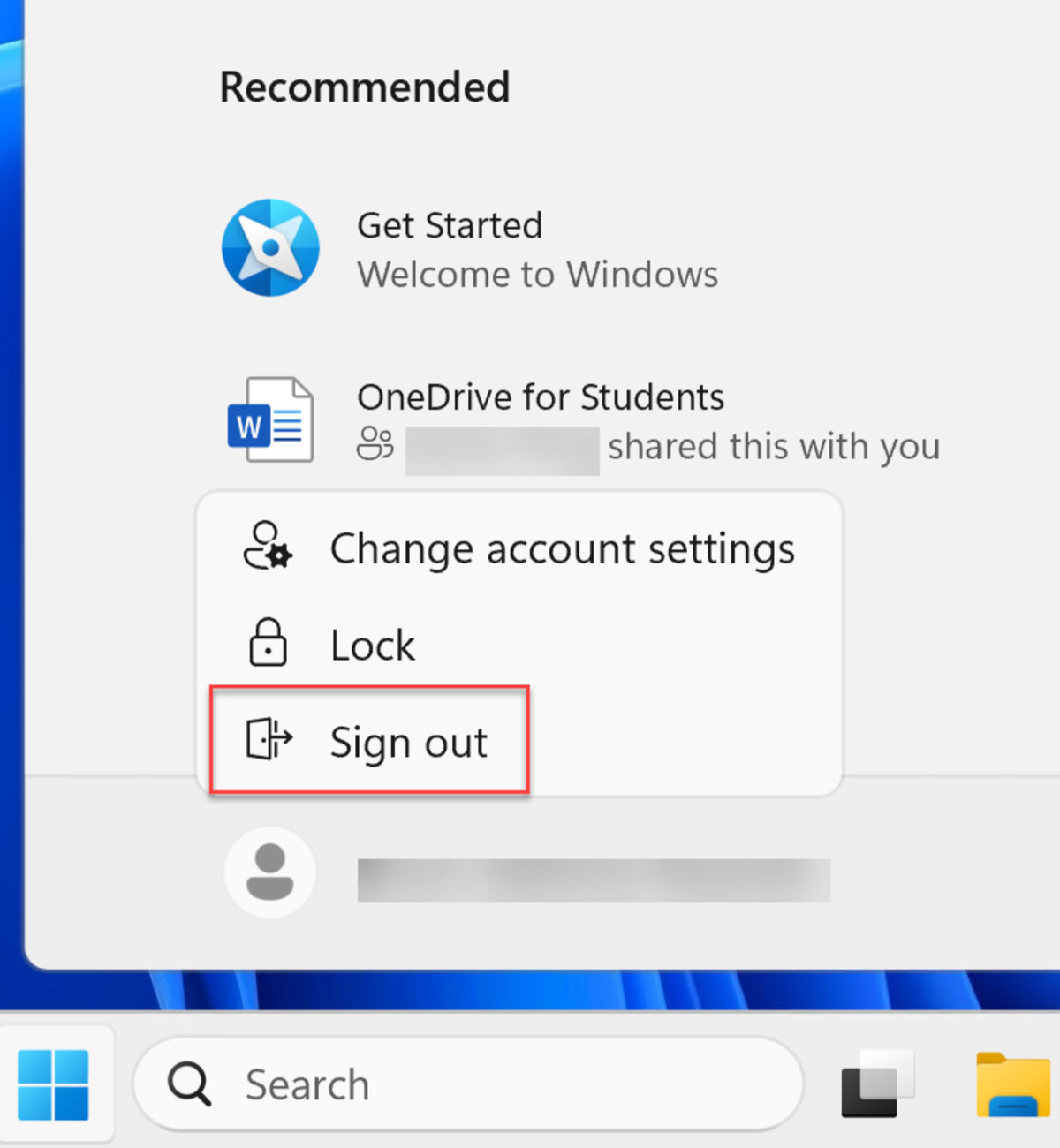
Thank you for your cooperation in keeping your account safe.