
Refunds and Disbursements
2026 Spring Financial Aid Disbursements
The Office of Financial Aid is in the process of releasing spring financial aid funds to eligible students. These funds are applied directly to the student account. Any funds received should first be applied towards eligible balances owed. If a credit remains on the account after those balances are paid, the student may be eligible for a disbursement of the remaining funds. Title IV funds should be disbursed to the student within 14 days of the day the funds appeared on the student account. Some holds on student accounts or changes in financial aid eligibility may also prevent funds from being disbursed. We appreciate your patience and understanding during this time as we process thousands of disbursements per day to get everything out as quickly as possible.
Dallas College has partnered with TouchNet to process and distribute refunds and disbursements to our students. This can include refunds from dropping courses, withdrawing from Dallas College, financial aid disbursements, and other miscellaneous payments you may be owed.
Most financial aid disbursements, refunds from cash and check payments, disbursements or refunds from older semesters and other miscellaneous refunds are disbursed to you via TouchNet based on the refund method you have selected. Refer to the “Set Up or Change My Refund/Disbursement Preference” section below.
If you paid with a credit/debit card and did not receive financial aid, your refund should be credited back to the card that was used for payment, up to the amount originally paid.
The software that connects Dallas College to TouchNet is called Heartland/TouchNet, and the refund processor and student support lines are called Heartland/ECSI. You may see any or all of these names as you use the various TouchNet Payment Center functions.
Refunds and disbursements are handled differently depending on whether you are a credit student or a continuing education student.
Set Up or Change My Refund/Disbursement Preference
You can select your refund/disbursement preference and change or update it at any time (options are direct deposit or check).
Note: Credit students who previously set up refund and payment preferences for Touchnet via eConnect must set up new preferences by accessing Touchnet via Workday.
If you do nothing, your account will default to receiving a check in the mail. Checks will be mailed to the current address on file with Dallas College. It is the student’s responsibility to update their address and personal information via eConnect.
- Learn how to update your address in Workday for credit students (login required)
- Learn how to update your address in eConnect for noncredit and continuing education students
You can change your preference to direct deposit or confirm that you would like to continue receiving checks by mail.
Note: Students taking both credit and noncredit classes receive separate billing statements, one in Workday for credit classes and one in eConnect for noncredit classes. These bills must be paid separately by accessing the Touchnet Payment System via Workday and eConnect, and refund preferences should be set in both systems.
Please contact the Cashier’s Office if you need assistance.
To view or select your refund/disbursement preference, access the TouchNet Payment Center
- For credit students - Log in to Workday
- Follow the steps in Set Up Payment Selections and ACH Refunds tutorial (login required).
- For noncredit and continuing education students - Log in to eConnect
- Select Continuing Education/Workforce Training Student from the menu.
- Then select TouchNet Payment Center under the Payment and Disbursements heading.
- If it is your first time logging in or you have not selected your preference, you may see the following:
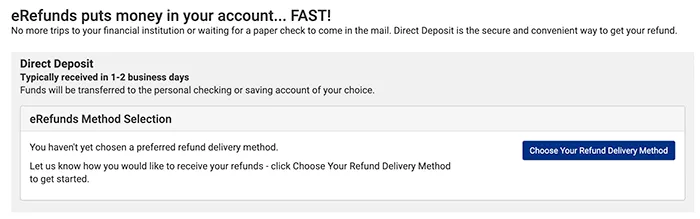
- Or, click on the “Refunds” tab at the top and you will see the following:
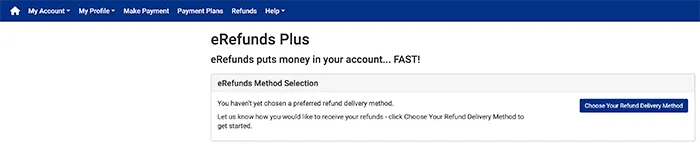
- Click the green box and you will be taken to the Heartland/ECSI refund method setup page. Select your option and follow the instructions. You will need your bank name and account number as well as the routing number if you are selecting direct deposit.
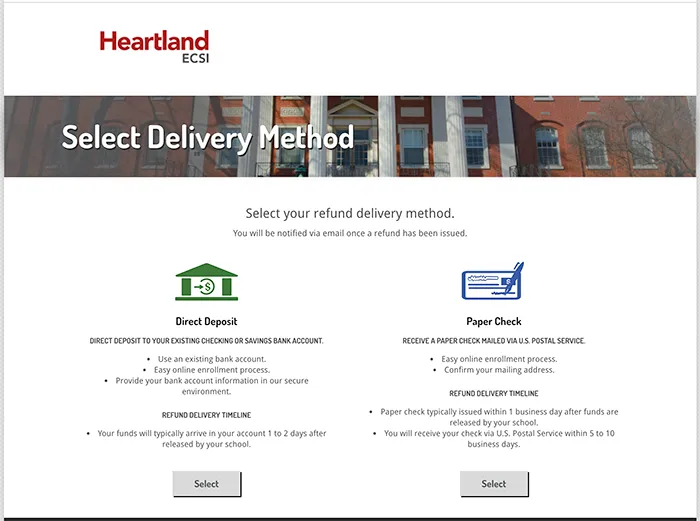
- Once you have set up your preference, you can view it along with any refunds and disbursements that have been sent to you by clicking on the “Refunds” tab.

Need To Petition for an Exception to the Refund Policy?
New: Students may petition for an exception to the refund policy in a separate process through student services.