
Check Your Grades
At the top of the course homepage on the blue navbar, click Grades.
On this page, you will be able to see all of the graded assignments, discussions and/or quizzes in the class as well as a final grade for the course.
Learn more about Accessing Your Grades (login required).

Image description: eCampus course homepage. Label 1 shows the Grades menu option in the blue navigation bar.
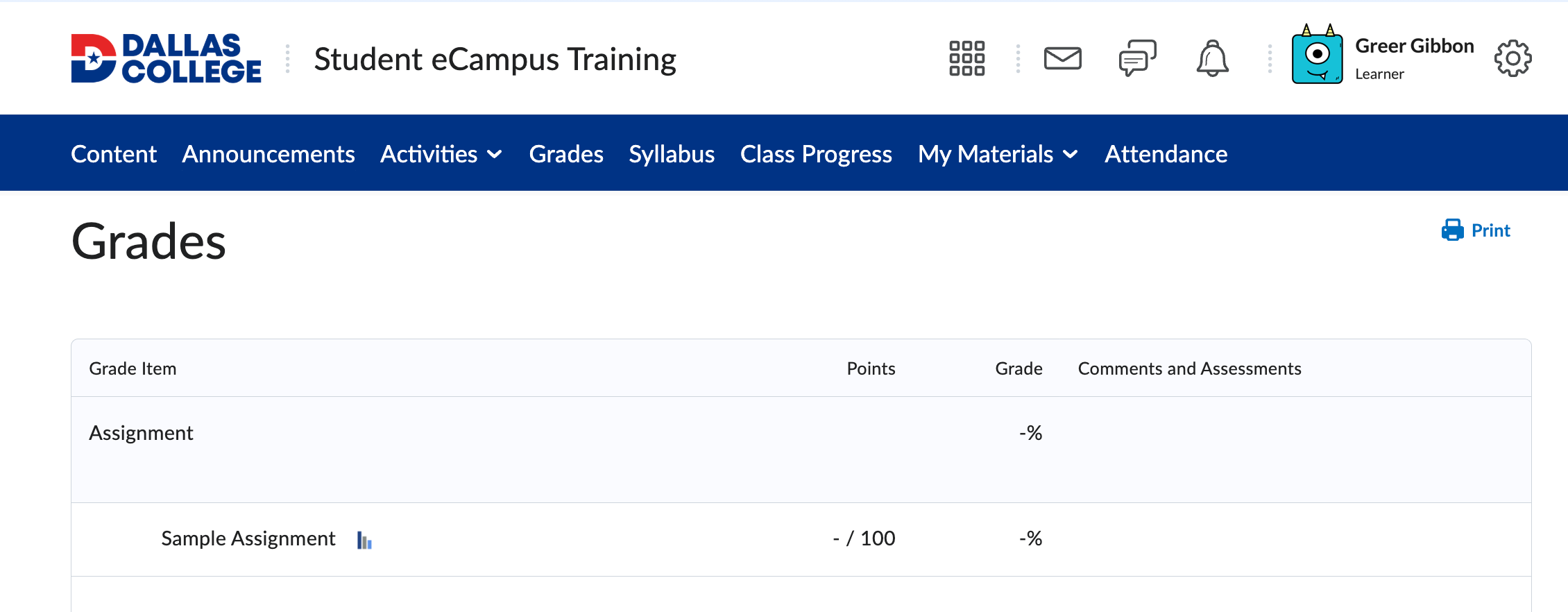
Image description: eCampus Grades page. The table below the title, “Grades”, has a Grade Item category of “Assignments”. The first assignment is listed as a “Sample Assignment”, which does not have any points associated and hasn’t been graded. The three accompanying columns for the number of points received, grade percentage, and comments and assessments are all blank.