
eCampus Discussions
Using the Discussions tool, you can post, read and reply to discussions in your course. Navigate to your desired discussion. Click on the forum and topic to view the discussion. Click on a thread to view it.
In a discussion, you can start a new thread or reply to an existing thread or post.
- Enter a title for your discussion thread.
- Use the Brightspace Editor to add text and/or multimedia to your post.
- Use these options to "Post as Anonymous" or "Subscribe to this thread" to receive notifications of subsequent posts.
- Upload or create files to attach to your post.
- Select "Post."
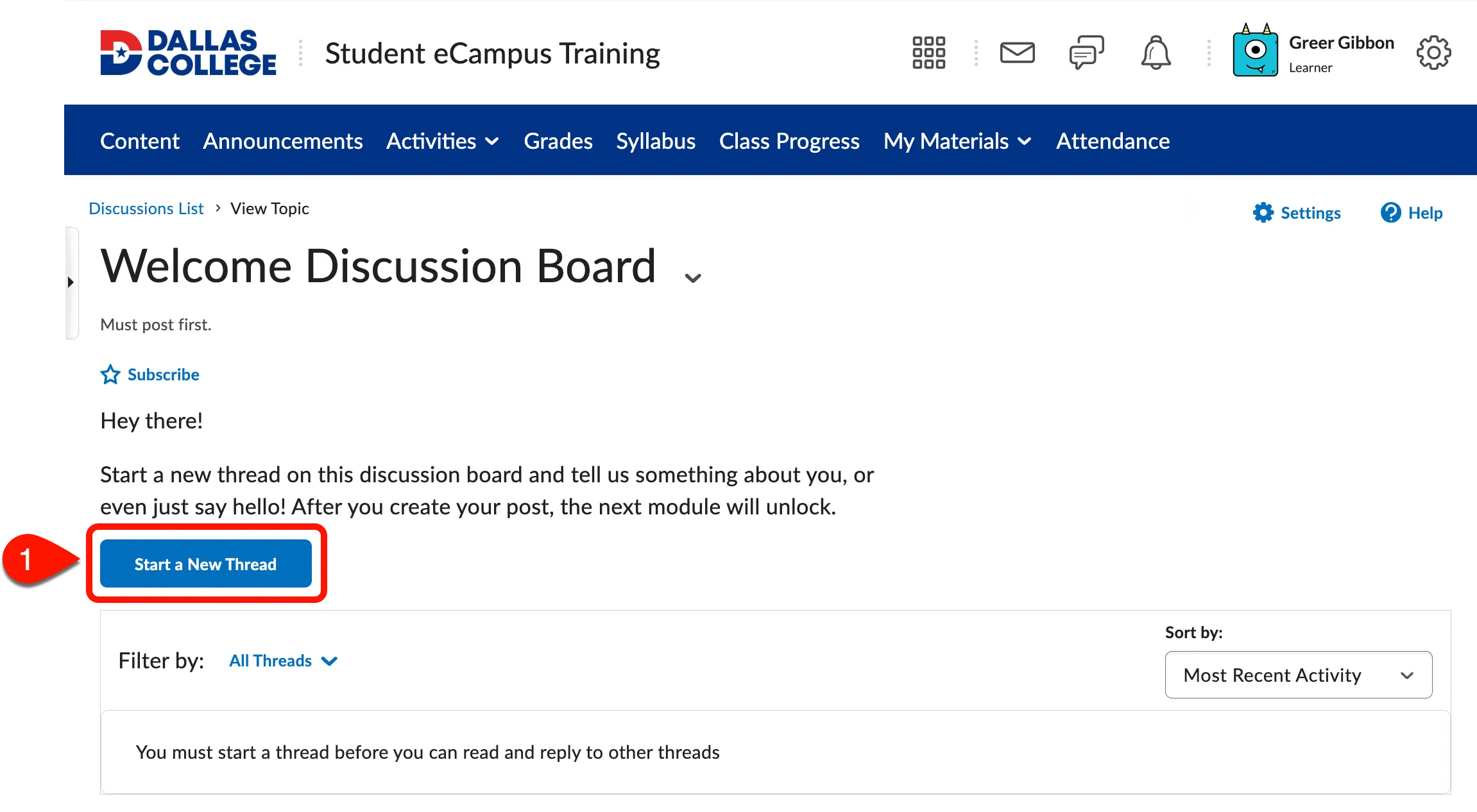
Image Description: Discussion topic page titled “Welcome Discussion Board” with a numbered label highlighting an important feature. Label 1 points to the “Start a New Thread” blue button, which is used to begin a new discussion within the topic. The button appears below the discussion board title.
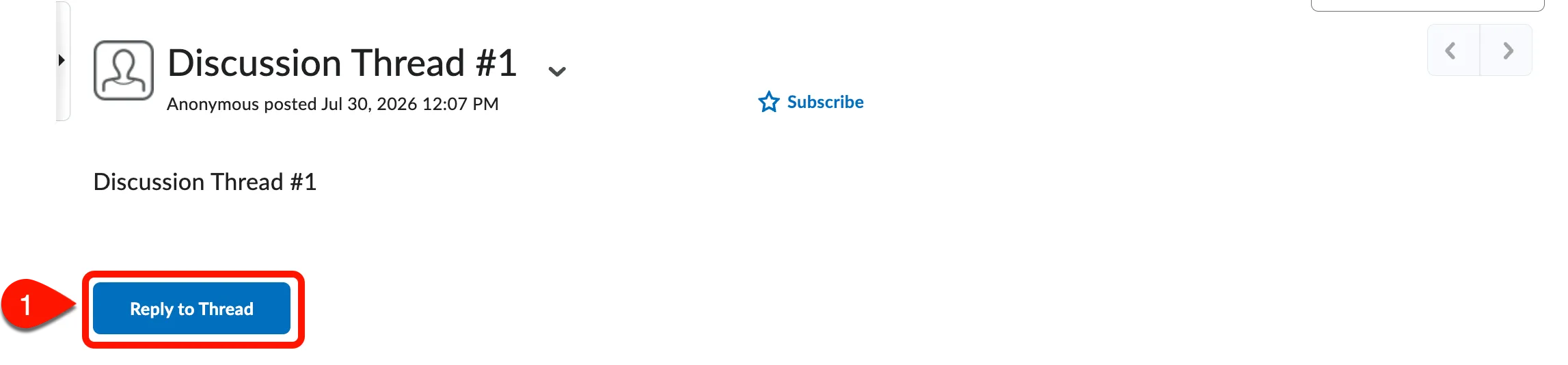
Image Description: Discussion Thread page. Label 1 points to the “Reply to Thread” blue button, which is used to reply to a current discussion thread.
Discussion Post Tips:
- Formatting: Copy-paste content may not preserve formatting. Review before posting.
- Word Limit: Your instructor may choose to set a word limit for a discussion post.
- Moderation: Post may need approval before appearing, if it is moderated.
- Pin Threads: Keep important threads at the top of the list by selecting "Pin Thread."
- Subscribe: Get updates by subscribing to discussion forums, topics, and/or threads.
- Edit Deadline: Posts cannot be edited after the deadline.